
OneTint Changing Store Name
- 16 Dec 2025
- 1 Minute to read
- Print
- DarkLight
- PDF
OneTint Changing Store Name
- Updated on 16 Dec 2025
- 1 Minute to read
- Print
- DarkLight
- PDF
Article summary
Did you find this summary helpful?
Thank you for your feedback!
Instructions for changing Store Name
On the
Desktop,double-clicktheOneTint DotNeticon to start the OneTint program.On the Main Menu of OneTint, select SETUP at the top.
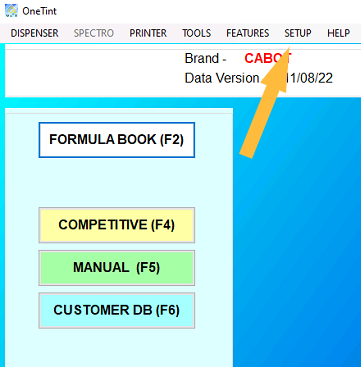
Click on
Account x Repand selectService x Technician. For the password enterColorresthen clickOK..png "image(53).png")
Select
Store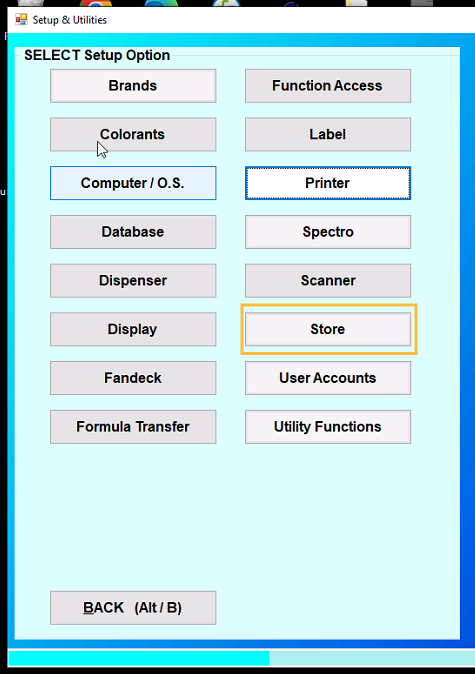
Replace
Your Store Namewith your store. Replace the0000with your store number or leave blank..png "image(54).png")
Once finished, keep clicking
BACKuntil you get to theMain Menu.