
OneTint Changing Formula Increments
- 16 Dec 2025
- 1 Minute to read
- Print
- DarkLight
- PDF
OneTint Changing Formula Increments
- Updated on 16 Dec 2025
- 1 Minute to read
- Print
- DarkLight
- PDF
Article summary
Did you find this summary helpful?
Thank you for your feedback!
Unless you’re using an Automatic Tinter / Dispenser, leave this setting unchanged.
This guide will provide the necessary steps in order to change the increments shown on the formulas display screen.
Follow the steps below in order, do not skip any steps:
From the OneTint
Main Menu, clickSETUPat the top.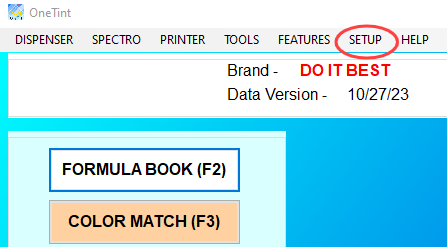
For username, select
Account X Rep, for password enterconsumer, then pressOk..png "image(120).png")
In the
Setup and Utilitiesmenu, selectBrands..png "image(121).png")
Select
Release View Options..png "image(122).png")
IMPORTANT: Pay attention to the options below.
If you’re using a manual dispenser, make sure the
Use Release Database Display Incrementsbox is unchecked..png "image(141).png")
If you’re using an automatic dispenser, make sure the make sure the
Use Release Database Display Incrementsbox is checked..png "image(142).png")
Once done with the step above click on the
BACKbutton on the bottom of the menu.You will be returned to the Select
Release View Optionmenu, click on theBACKbutton.If you’re using an automatic dispenser, no further steps are needed, exit the menu setup by clicking the
BACKbutton, to return back to themain menu. For manual dispensers, click onCOLORANTSin thesetup menu.Select
DISPLAY INCREMENTS..png "image(143).png")
Select the increment you want to be displayed then click
BACKto save the configuration..png "image(145).png")
Changing the increment settings are now complete. Keep clicking
BACKon the setup menus to return to the main menu.