
OneTint Brands Configuration
- 04 Sep 2024
- 1 Minute to read
- Print
- DarkLight
- PDF
OneTint Brands Configuration
- Updated on 04 Sep 2024
- 1 Minute to read
- Print
- DarkLight
- PDF
Article summary
Did you find this summary helpful?
Thank you for your feedback!
OneTint Brands Configuration
This guide will provide the necessary steps in order to turn Brands off or on.
Do the steps below in order, do not skip any steps:
From the OneTint
Main Menu, clickSETUPat the top.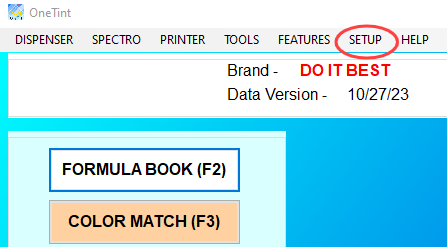
For username, select
Account X Rep, for password enterconsumer, then pressOk..png "image(120).png")
In the
Setup and Utilitiesmenu, selectBrands..png "image(121).png")
In the
Select Brand Setup Optionmenu, selectBrands Setup..png "image(122).png")
Within the
Brand Databases Setupmenu, only change the options in theTurn Brand On or Offsection, do not configure any other options and never clickDelete Brand. By default, all Brands are turned ON, noted by the check mark in the box to the left of each Brand. To turn the Brand OFF, click the on box to uncheck it. Once done, keep clicking on the Back button until the Main Menu, this will save the configurations made.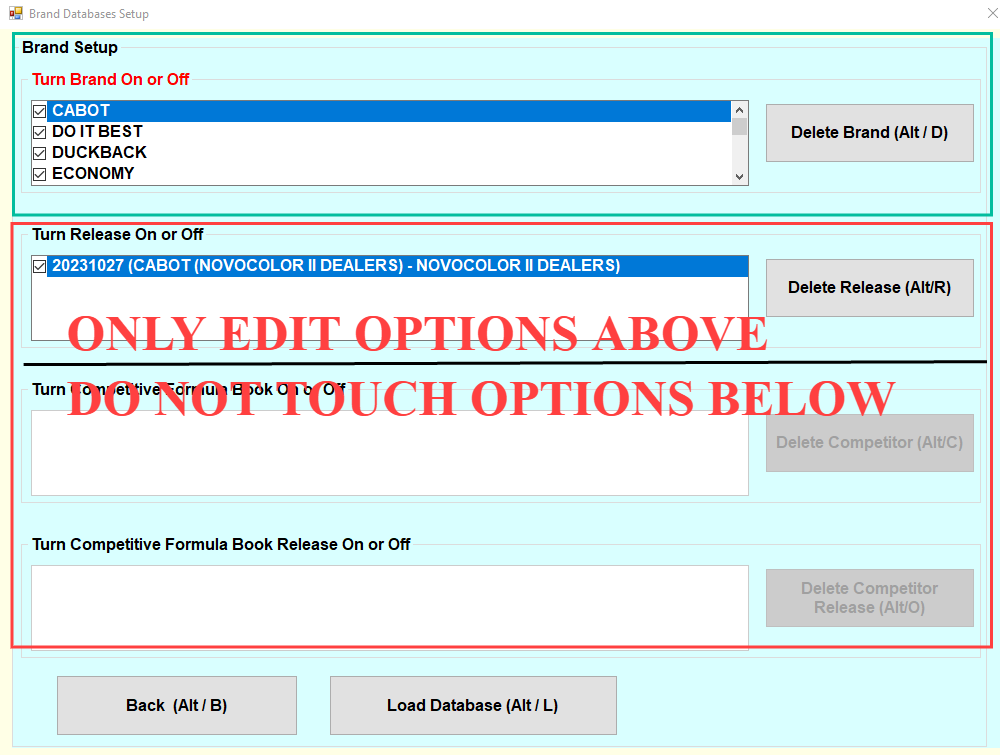
Once at the
Main Menu, ClickFORMULA BOOKto make sure the desired brands are set correctly.